 Candlemark
Candlemark
A time tracker for your Mac's menu bar.
Pick a project from the menu bar and the clock starts. If you leave your desk, Candlemark stops counting at the last moment you touched the keyboard or mouse. Sessions are saved to disk as you go, and you can export them as CSV for a spreadsheet.
SHA-256 6c03ba0d0777328c25732f1784ce8b010bd633e85d1b90b1633ff0d9d9443577
Earlier versions: 0.1.0 beta 5, 0.1.0 beta 4
What it does
Candle clocks were candles marked in hourly bands, used to tell the time before mechanical clocks. Candlemark is named after them.
Starting and switching
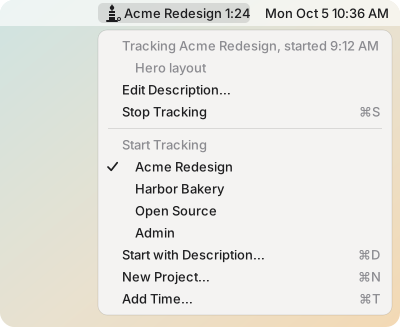
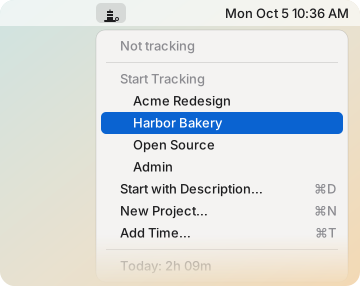
Your projects are listed in the menu. Click one to start tracking it, or click a different one to switch. While a session is running, the candle in the menu bar is lit, with the project name and the elapsed time next to it. Stop Tracking (⌘S) ends the session.
Resuming
When nothing is running, Resume (⌘R) starts a new session on the project you last tracked, with the same description, for up to 24 hours after that session stopped. It also works after Candlemark restarts. The time away isn't counted.
Descriptions
Start with Description… (⌘D) lets you add a short note when you start, like "Hero layout". It appears under the running session, in Recent Sessions and in CSV exports. Descriptions are optional. You can add, change or remove one later with Edit Description… in the menu.
Editing, splitting and merging
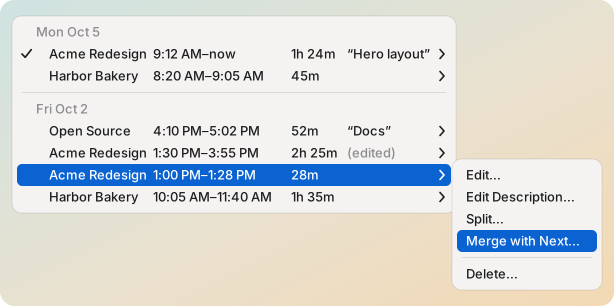
Recent Sessions shows your last 20 sessions, grouped by day. Each one has its own submenu:
- Edit… changes the project, start, end or description. On the running session you can move the start time back if you started the timer late.
- Split… cuts a session in two at a time you choose, and each half can have its own description.
- Merge with Next… and Merge with Previous… join two sessions on the same project when there are 5 minutes or less between them. The gap counts as tracked time.
For work you did without the timer running, use Add Time… in the main menu. It warns you if the new time overlaps a session you already have.
Today's totals
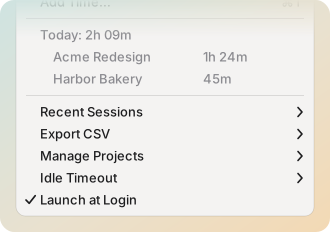
The menu shows how much time you've tracked today on each project.
CSV export and import
Export CSV saves one project or all active projects, for all time, today, this week, last week, this month or last month. Each row is one session: the project, date, start, end, duration, hours as a decimal, whether it was tracked, added by hand, edited or imported, the description, whether its times are real, approximate or placeholders, and the ID it was imported with.
Import CSV… brings in time from a file in the same format, such as records from another time tracker. It shows what it would add before saving anything.
Idle time and sleep
If there's no keyboard or mouse input for 10 minutes (you can change this), the session ends at your last input, so the idle time isn't counted. Sleep is handled the same way. When you come back, Candlemark tells you what happened and offers to resume. If you dismiss that, Resume in the menu still offers the session for 24 hours.
Crashes and restarts
Changes are written to disk as they happen. If Candlemark crashes, macOS starts it again (from your next login on) and you lose a few seconds at most. After a restart or a power cut, an open session carries on if you were only away briefly. Otherwise it's closed at the last time you were active.
Where your data lives
Everything stays on your Mac, in a SQLite file in your Library folder. There's no account to sign up for. Open Data Folder in the menu shows you where it is.
Command-line tool
The candlemark command starts, stops and describes sessions and lists your
time, from Terminal or from a script. The menu bar updates as soon as a command runs.
Setup is below.
Claude Code and the Claude desktop app
Claude Code can run the candlemark command. For the Claude desktop app, a
menu item adds Candlemark to Claude's settings. After that you can ask Claude to start or
stop a session, set a description, or tell you how much time went where.
Launch at login
Candlemark starts when you log in and doesn't appear in the Dock. If you'd rather start it yourself, turn off Launch at Login in the menu.
Install
- Download Candlemark 0.1.0 beta 6 and open it.
- Drag Candlemark onto the Applications folder next to it.
- Open Candlemark from your Applications folder. macOS will block it the first time; see below.
- The candle appears in the menu bar.
If macOS says "Apple could not verify Candlemark is free of malware"
Candlemark isn't notarized by Apple yet, because that needs a paid Apple developer account. Until it is, macOS won't open it with a double-click the first time. You have to allow each new version once.
macOS 15 Sequoia and later
- When the warning appears, click Done (not Move to Trash).
- Open System Settings › Privacy & Security and scroll down to Security.
- Next to "Candlemark was blocked to protect your Mac", click Open Anyway.
- Enter your password or use Touch ID, then click Open Anyway once more.
macOS 13 Ventura and 14 Sonoma
- In Finder, open your Applications folder.
- Control-click (or right-click) Candlemark and choose Open.
- Click Open in the dialog.
On any version you can instead remove the download flag in Terminal, then open Candlemark as usual:
xattr -dr com.apple.quarantine /Applications/Candlemark.appGood to know
- Open Candlemark from Applications. If you run it from the disk image or your Downloads folder, it can't set itself up to start at login, so it offers to move itself to Applications and reopen from there.
- The first time it runs, macOS shows a "Background Items Added" notification, because Candlemark registers itself to start at login. That's normal.
- If you can't see the candle, the menu bar may be full. On Macs with a camera notch, icons can end up hidden behind it. Quit a few other menu bar apps, or hold ⌘ and drag icons to make room.
- To update, quit Candlemark (click the candle, then Quit Candlemark), install the new version over the old one the same way, and approve it once as above. Your data is kept.
- To uninstall, quit Candlemark, delete it from Applications, and delete
~/Library/LaunchAgents/com.tinynumbers.candlemark.plist. Your data stays in~/Library/Application Support/Candlemarkuntil you delete that folder as well.
Upgrading from TimeTracker
Candlemark was called TimeTracker up to 0.1.0 beta 2. Quit TimeTracker (stopwatch ›
Quit TimeTracker), then install Candlemark as above and open it. The first
time it runs, it moves your data over from
~/Library/Application Support/TimeTracker, replaces TimeTracker's login item,
and offers to move TimeTracker.app to the Trash. Say yes. If you keep the old
app and open it, it starts over with no data.
Requirements
- macOS 13 Ventura or later.
- An Apple Silicon or Intel Mac. The app is a universal build, so it runs natively on both.
Command line and Claude
The candlemark command
Choose Install Command-Line Tool… in Candlemark's menu. It links the
command into /usr/local/bin, or into ~/.local/bin if
/usr/local/bin isn't writable. In that case, make sure
~/.local/bin is on your PATH. If you move Candlemark later, choose
the menu item again.
candlemark status                        # what's running, and today's totals
candlemark projects [--all]              # active projects (--all adds archived ones)
candlemark start "Project" [-d "..."]    # start, or switch to, a project
candlemark stop
candlemark resume                        # start again on the last session's project and description
candlemark describe [SESSION_ID] "..."   # the running session if no id; "" removes it
candlemark sessions [--since 2026-10-01] [--until 2026-10-03] [--project "..."] [--limit N]
candlemark import FILE [--dry-run] [--allow-overlaps]   # import a CSV file; - reads stdin
Add --json to any command to get JSON output. The command talks to the running
app, and the menu bar updates right away. It can't delete anything or change a session's
times; you do that from the menu. import --dry-run shows what an import would
add without saving it.
Claude Code
Claude Code can run candlemark like any other command. To have it track your
time, add something like this to your CLAUDE.md (in ~/.claude/ to
cover every project, or in a single project's folder):
## Time tracking

I track my time with Candlemark's `candlemark` command. Use it when I ask you to start,
stop or describe my work, or to report on time spent:

- `candlemark status --json`: what's running and today's totals.
- `candlemark projects --json`: project names. Use one exactly; don't invent projects.
- `candlemark start "<project>" --description "<what I'm doing>"`: start or switch.
- `candlemark stop`: stop tracking.
- `candlemark resume`: carry on with the last session's project and description after a
  break. `candlemark status --json` shows it as `last_session` when nothing is running.
- `candlemark describe "<text>"`: describe the running session.
- `candlemark sessions --since today --json`: today's sessions with their ids.

Keep descriptions short. Tracking stops by itself when I'm away from the keyboard, so
check `candlemark status` rather than assuming a session is still running. If a command
exits with status 3, Candlemark isn't running or was too busy to answer, and nothing
was changed: tell me rather than retrying.
The Claude desktop app
- Quit Claude.
- In Candlemark's menu, choose Install for Claude Desktop….
- Open Claude again.
Now you can ask Claude to start, stop or describe your sessions, or to report on your time.
The menu item adds Candlemark to Claude's settings without changing your other settings or
servers. To set it up by hand, add this under mcpServers in
~/Library/Application Support/Claude/claude_desktop_config.json. In Claude,
Settings › Developer › Edit Config opens that file.
"candlemark": {
  "command": "/Applications/Candlemark.app/Contents/Helpers/candlemark",
  "args": ["mcp"]
}
Claude gets seven tools: get the status, list projects, start a session, stop it, resume the last one, set a description, and list sessions. As with the command, it can't delete anything or change a session's times.
What's new in 0.1.0 beta 6
This beta lets you pick up where you left off after a break.
New
- Resume (⌘R) appears at the top of the menu whenever nothing is running. It starts a new session on the project you last tracked, with that session's current description, for up to 24 hours after the session stopped. It works however the session ended (Stop Tracking, idle, sleep, a crash or Quit), and it's still there after Candlemark restarts. Time you added by hand or imported isn't offered, and neither is a project you've archived. The time away isn't counted.
- The dialog you get when you come back after being idle or asleep follows the same rules: Resume Tracking isn't offered once the session stopped 24 hours ago or its project has been archived.
- The command-line tool has
candlemark resume, and when nothing is runningcandlemark statusshows the session it would resume. Claude gets a matchingresume_sessiontool, so it can ask "You were working on X. Resume it?" when you come back.
Changed
- Menu items that can't be used, such as Add Time… when you have no projects, are now greyed out instead of looking clickable.
Updating from beta 5
Quit Candlemark, drag the new version onto Applications to replace the old one, and open it. macOS asks you to approve the new version once. Your projects, sessions and settings are kept, and the database doesn't change. The About panel shows version 0.1.0 (6).